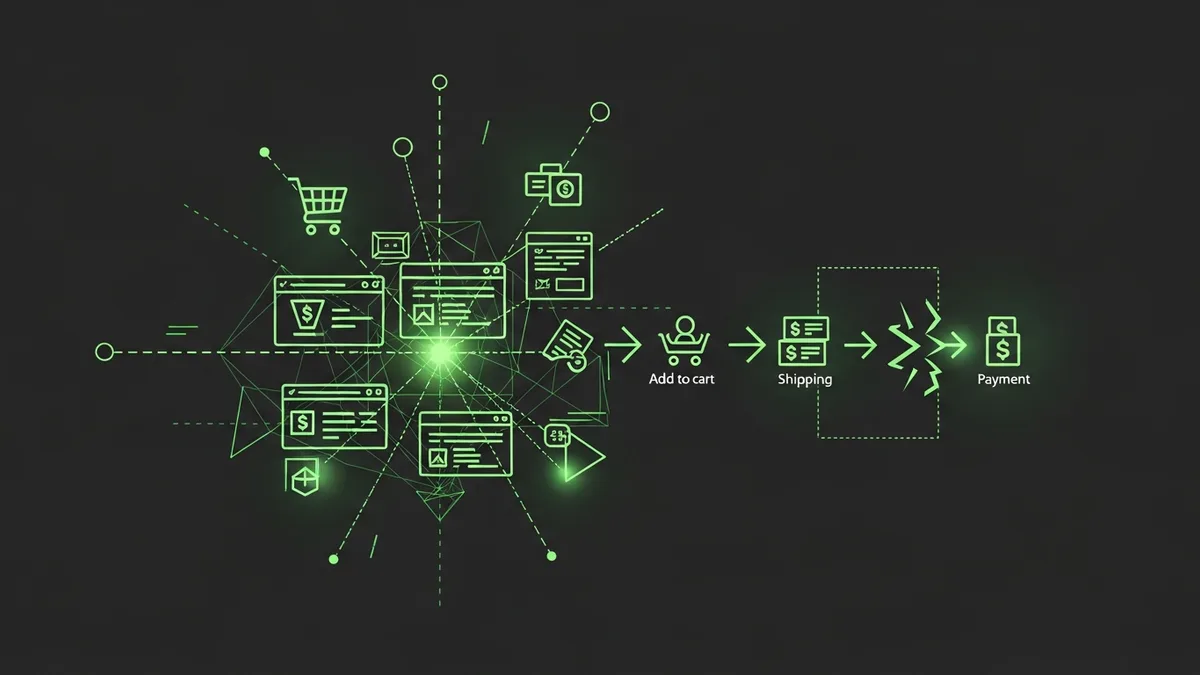
The Plugin Update That Killed a Weekend's Revenue
Friday, 5:47 PM. A store owner I work with hit "Update All" on their WooCommerce plugins dashboard and closed their laptop. By 8 PM, their checkout page was throwing a white screen of death. The culprit? A conflict between the updated payment gateway plugin and a shipping calculator plugin that hadn't been updated in 6 months. They lost $3,400 in orders before they discovered it Saturday morning.
Woocommerce plugin conflict detection isn't something most store owners think about until a conflict has already cost them money.
Why WooCommerce Plugin Conflicts Are So Common
WooCommerce has over 800 official extensions and thousands more third-party plugins. They're all built by different developers with different coding standards, different update schedules, and different approaches to hooking into WordPress and WooCommerce core.
That's a recipe for conflicts. Two plugins trying to modify the same checkout field. Three plugins loading their own version of jQuery. A security plugin blocking the AJAX calls that a payment gateway needs to process transactions.
We audited 22 WooCommerce stores last spring. Every single one had at least one plugin conflict, though most of them were minor (console errors, slow admin pages). Seven of the 22 had conflicts that were actively affecting the customer-facing experience. That's nearly a third, and most of those store owners had no idea.
How to Set Up Woocommerce Plugin Conflict Detection
Start with a staging environment. If you're updating plugins directly on your live site, stop doing that. Shopify handles updates centrally, but WooCommerce gives you the power and the responsibility. Use a staging site to test updates before pushing them live.
Here's the process we follow:
- Update one plugin at a time on staging, never bulk update
- After each update, test the full purchase flow (add to cart, view cart, checkout, payment, order confirmation)
- Check the browser console for JavaScript errors on key pages
- Verify that email notifications still fire (order confirmation, shipping notification)
- If anything breaks, deactivate the updated plugin and check if the issue resolves
That's your basic woocommerce plugin conflict detection workflow. It takes 15 to 20 minutes per plugin, which feels slow until you compare it to the alternative of debugging a broken checkout on a Friday night.
Automated Conflict Detection After Updates
Manual testing catches most issues, but you can't test every possible customer interaction. Some conflicts only surface under specific conditions. A payment error that only appears when a customer applies a coupon code and uses a specific payment method while shipping to a PO box. Real example. Happened last month.
Set up automated monitoring on your checkout flow using FunnelLeaks. Monitor the critical pages (product page, cart, checkout, thank you page) every few minutes. After any plugin update, watch those alerts closely for the next 24-48 hours.
Also keep GTmetrix reports from before and after updates. If your page load time jumped from 2.8 seconds to 5.1 seconds after an update, that's a performance conflict even if nothing visibly broke.
Update Carefully, Monitor Always
WooCommerce plugin conflicts will keep happening. That's the nature of an open plugin system. Your job isn't to prevent all conflicts. It's to catch them before your customers do. Test on staging, monitor production, and never, ever hit "Update All" on a Friday afternoon. Check out FunnelLeaks pricing to add that production safety net to your WooCommerce store.